
Use Your ChatGPT Plan With Leo
Run Leo on your own ChatGPT Plus or Pro subscription — connected in five clicks.
Leo can run on the GPT models included in your own ChatGPT plan (Plus or Pro). When you connect your ChatGPT account, Leo uses your subscription instead of your instance's API credits. You can disconnect at any time.
Prefer to watch? Here is the whole flow in about a minute, with narration:
The short version: Purple + button Model pick a "my ChatGPT plan" model Connect ChatGPT enter the code on the OpenAI page. Done.
Before you start
- You need a ChatGPT Plus or Pro account. Sign up at https://chatgpt.com if you do not have one.
- This feature ships with recent LlamaPress versions. If you do not see the "my ChatGPT plan" models in the list in Step 3, email support@llamapress.ai and we will update your instance.
Step 1 — Click the purple + button
Open your Leo chat. At the bottom left of the message box, click the purple + button. This opens the tools toolbar.
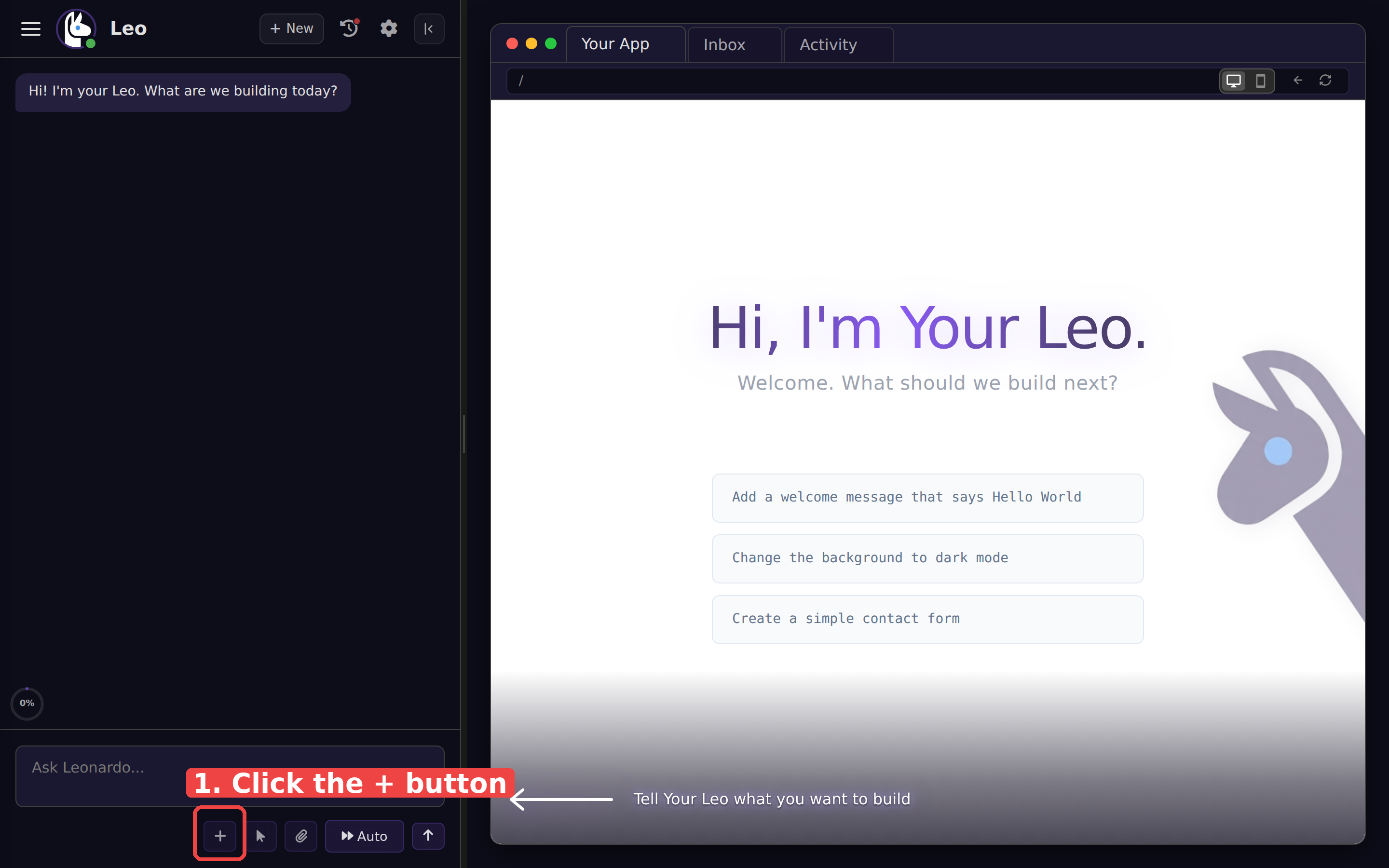
Step 2 — Click Model
In the toolbar that appears, click the Model button. The model picker appears above the toolbar.
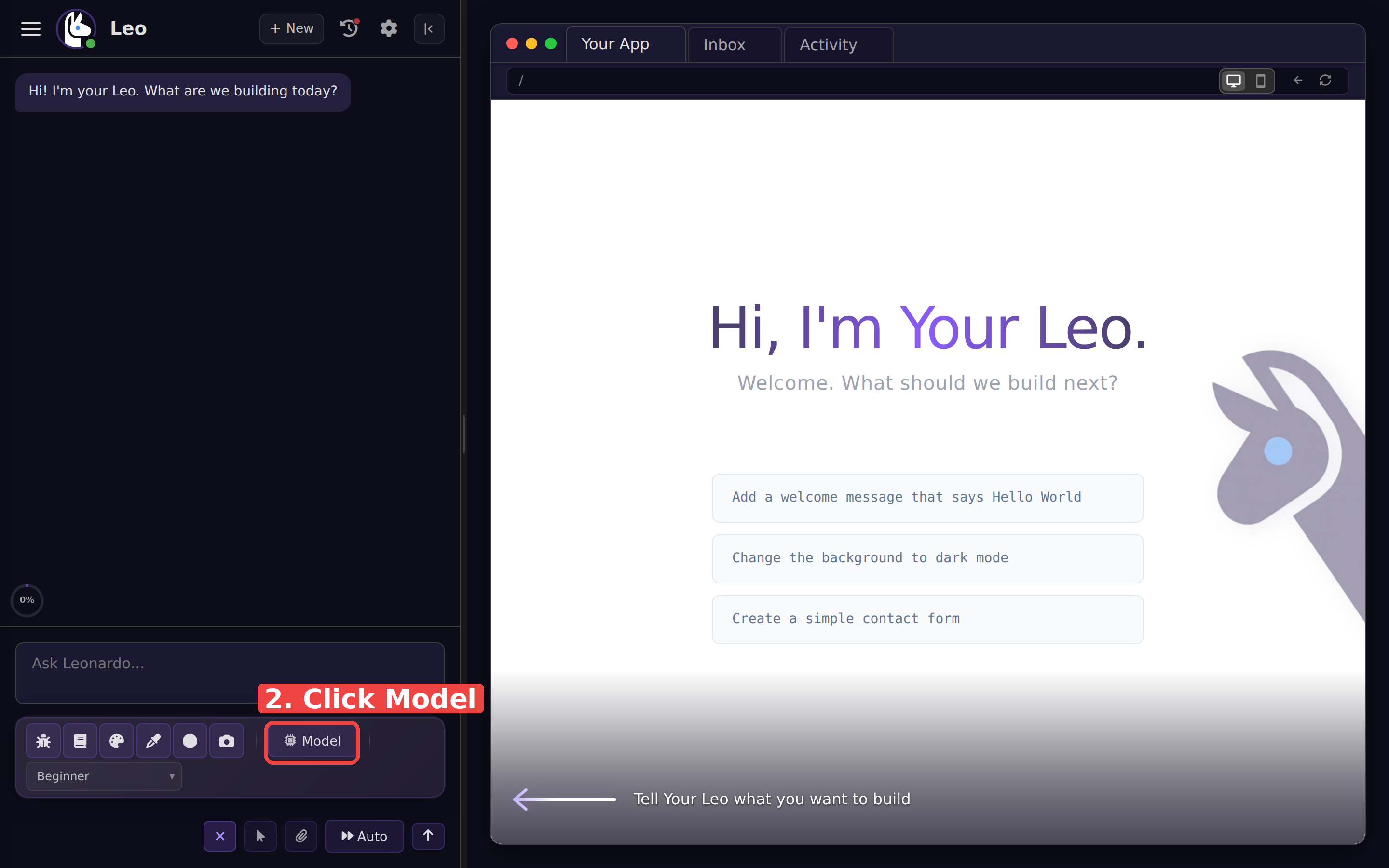
Step 3 — Pick a "my ChatGPT plan" model
Open the model dropdown and choose GPT-5.6 Luna — my ChatGPT plan or GPT-5.6 Sol — my ChatGPT plan.
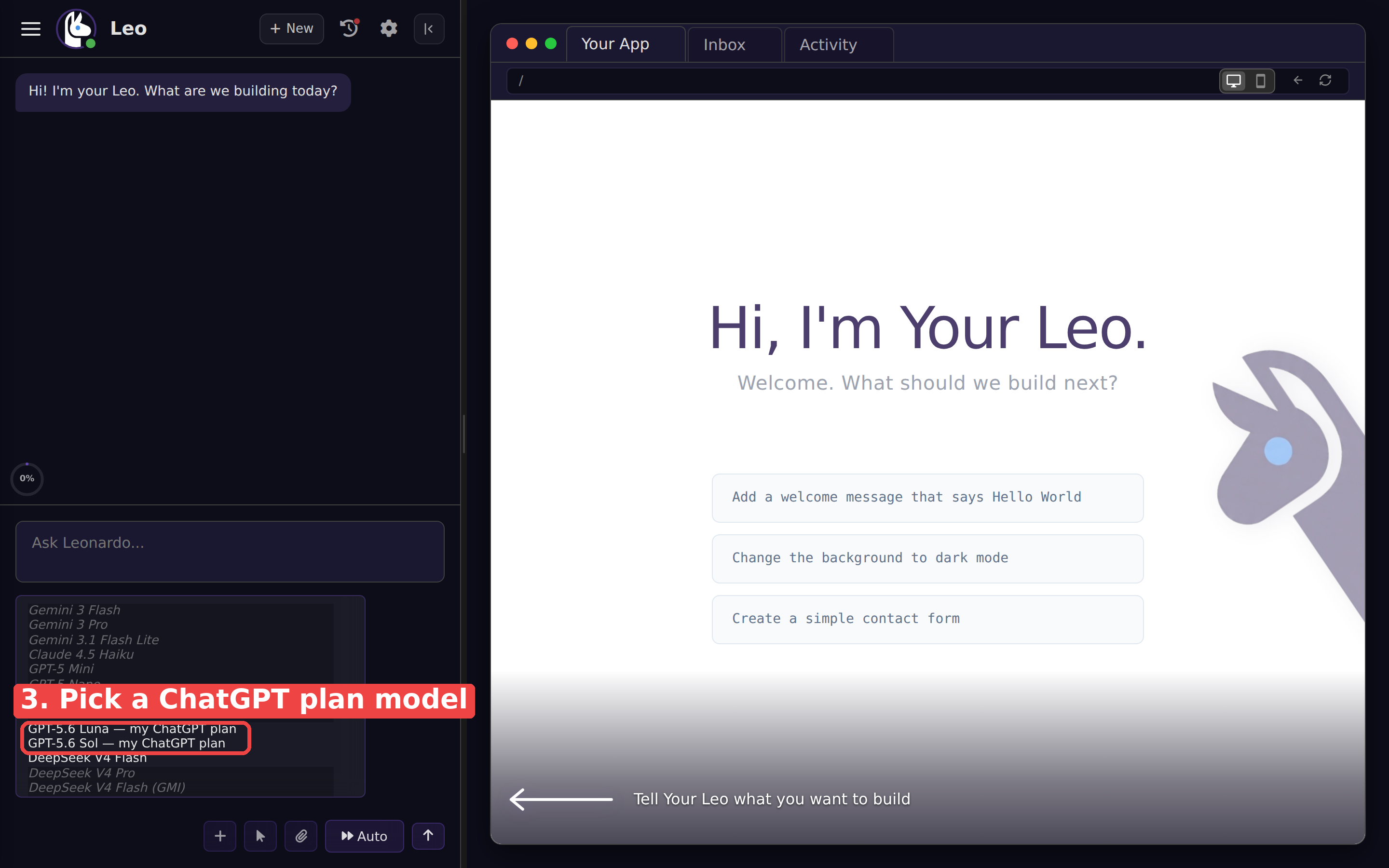
Step 4 — Click Connect ChatGPT
A window titled "Use your own ChatGPT plan" pops up. Click Connect ChatGPT.
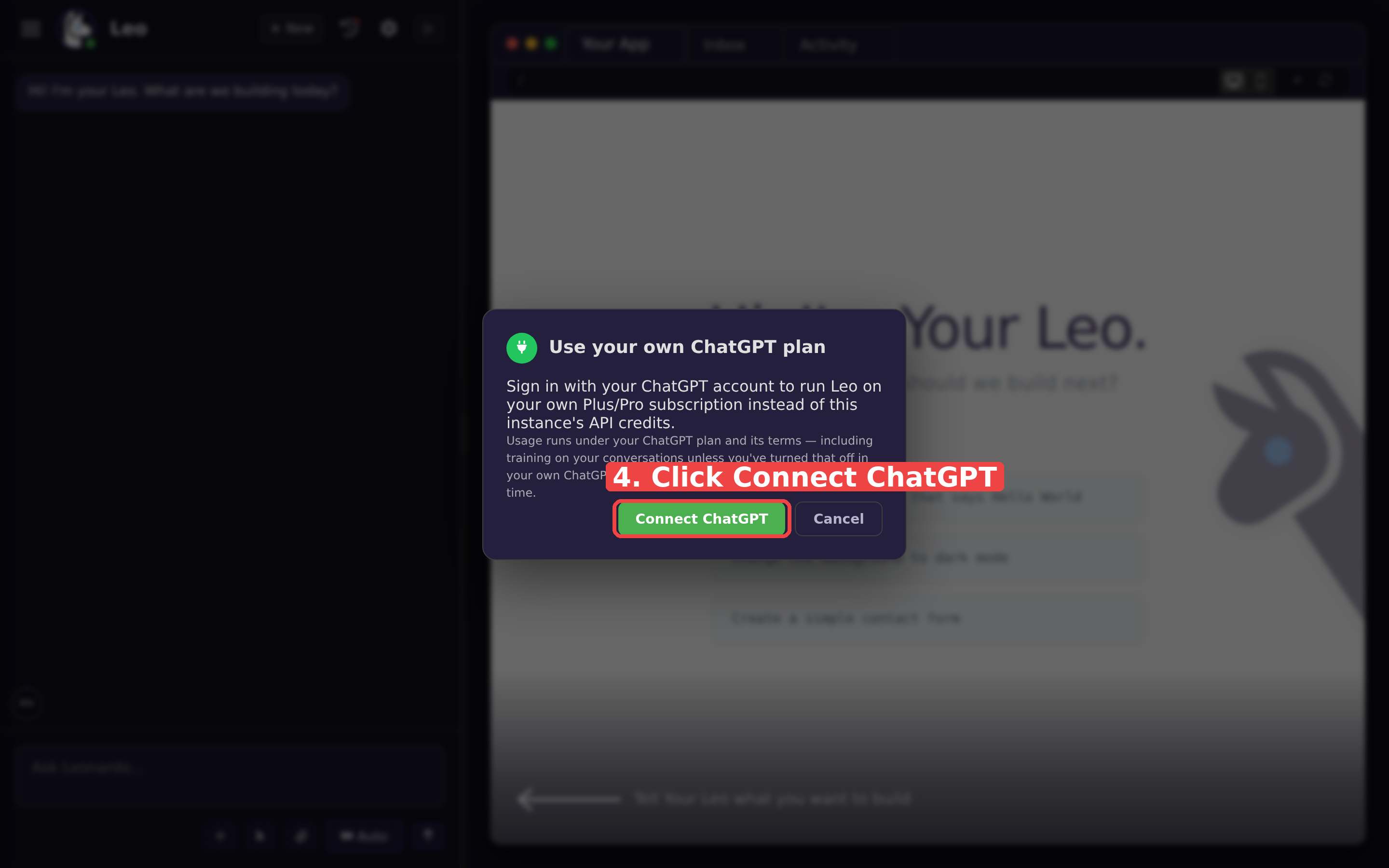
Good to know: usage runs under your ChatGPT plan and its terms. That includes training on your conversations unless you have turned that off in your own ChatGPT data controls. You can disconnect at any time.
Step 5 — Enter the code on the OpenAI page
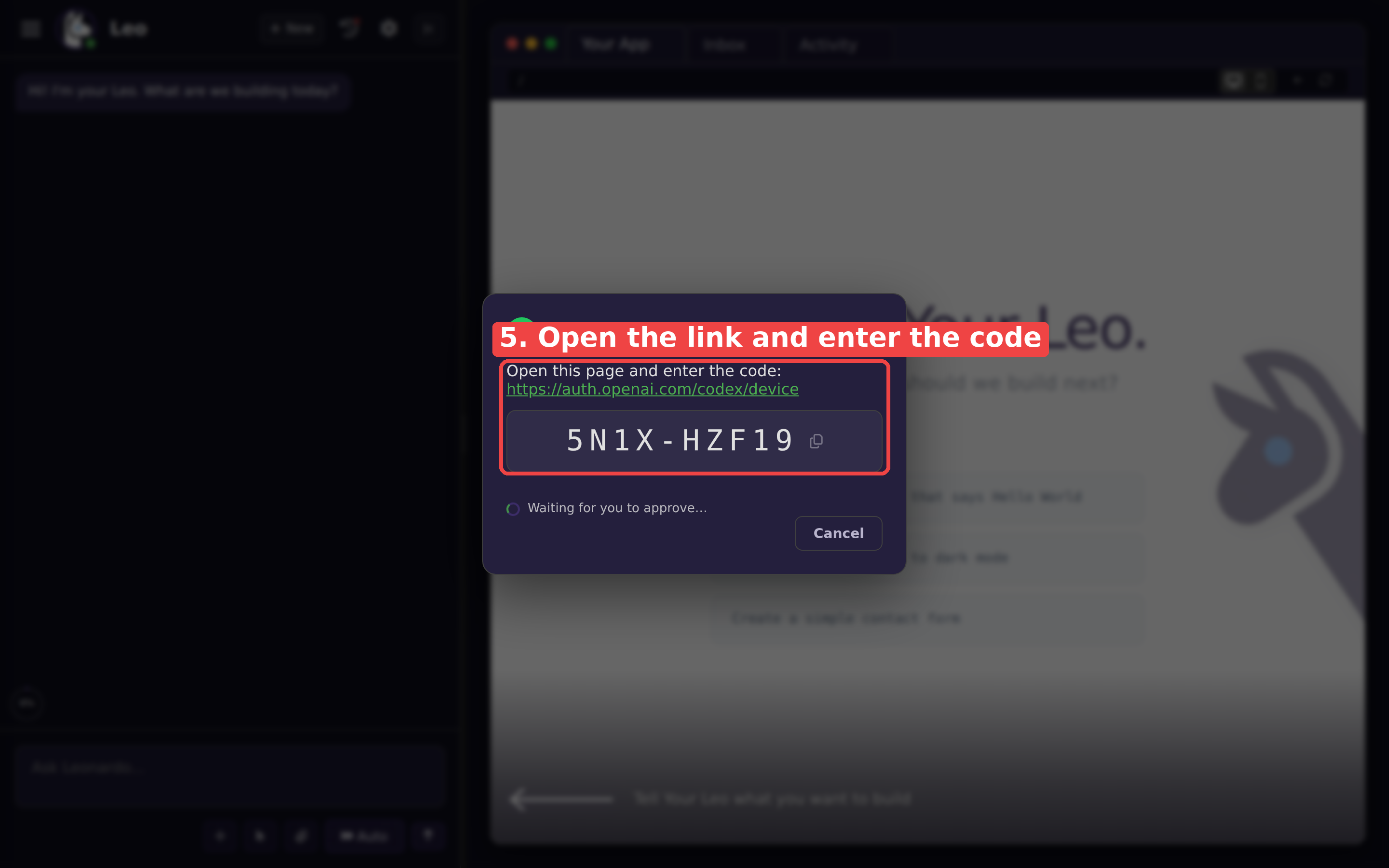
Leo shows a short code and a link. Open https://auth.openai.com/codex/device in a new tab, sign in to your ChatGPT account, and enter the code. Then approve the connection. The Leo window says "Waiting for you to approve..." until you finish.
You're connected
When the window says you are connected, you are done. Leo now uses your ChatGPT plan whenever a "my ChatGPT plan" model is selected. A small status line under the model picker shows which ChatGPT account is connected — click it to manage or disconnect the account. You can switch back to any other model in the same dropdown at any time.
Troubleshooting
- The model is greyed out and says "Connect your ChatGPT account". That is normal before you sign in — select the model anyway and the connect window opens.
- The code expired before you entered it. Click Cancel, select the model again, and a fresh code appears.
- You do not see the "my ChatGPT plan" models at all. Your instance may be on an older version. Email support@llamapress.ai and we will update it for you.